Automatic messages on WhatsApp Business: how to set them up and when to move to the API
The WhatsApp Business app already sends three kinds of automatic message for free: the greeting message, the away message and quick replies. Setup takes five minutes, and the step-by-step guide is here, with ready-made templates. What takes longer to notice is where the app stops: one greeting for everyone, no conditions and no history. That's where automation moves to the API.
 CCX OperationsDelivery · Channel rules · Oct 21, 2026 · 10 min read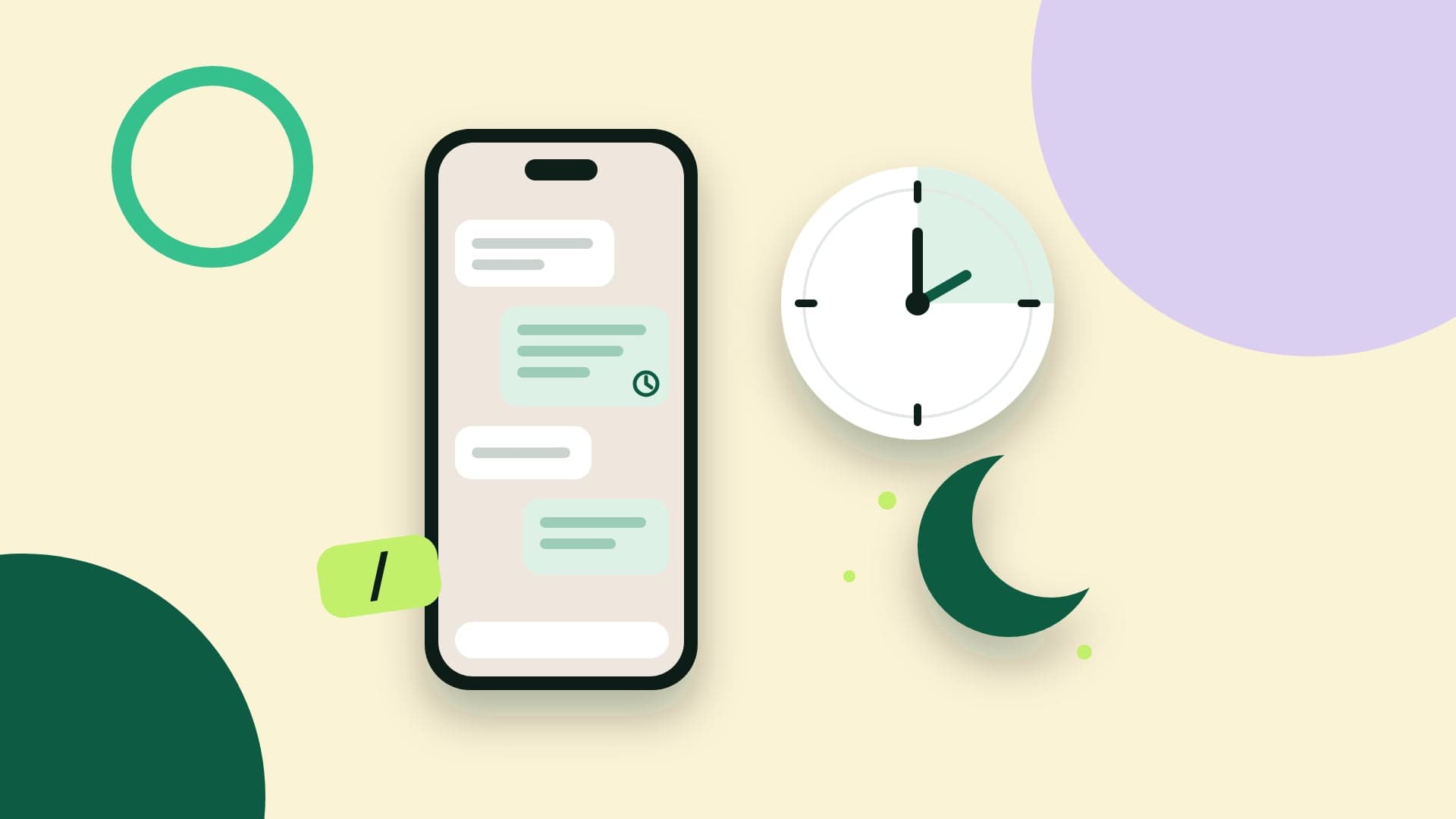
What you'll take away
- How to set up the greeting message, the away message and quick replies on Android and iPhone
- Automatic message templates for welcomes, after hours, holidays and orders
- The app's limits and what changes when automation moves to the official API
The three automatic messages the app already handles
The WhatsApp Business app, the free app for small businesses, has three features that work as automatic messages. The greeting message welcomes people who write to you for the first time. The away message replies when no one is available. Quick replies don't go out on their own, but they turn a saved message into a shortcut, which in practice covers much of what people expect from automation.
All three live in the same place: the Tools tab in the app, on both Android and iPhone. Many guides still tell you to look under Settings and then Business tools, but the path changed in recent versions. If your app still shows the old menu, update it before you start.
One caveat before you start: these three tools belong to the app. They don't exist in the official WhatsApp API, and if you use the same number on the app and the API, known as coexistence, you keep them only on the phone. On the API, automation is handled by software, as we show further down.
Greeting message: how to set it up
The greeting message goes out automatically when someone writes to the business for the first time, and again when they come back after 14 days without a conversation. People who wrote in the last 14 days don't get it. For it to work, the phone with the app needs to be connected to the internet.
To turn it on, open the Tools tab, tap Greeting message and turn on Send greeting message. Tap the message to write the text and confirm: on Android, the button is OK; on iPhone, Save. Then choose the recipients and save.
There are four recipient options: Everyone; Everyone not in address book; Everyone except…, to leave out people you pick; and Only send to…, to reach only people you pick. Leaving out saved contacts is usually the best choice, because existing customers don't need an introduction every two weeks.
A tip if you run ads: the app's Short link, under Tools, can include a default message the customer sends when they open the link, and you can turn the same link into a QR code. People who come from an ad, a package or your counter start the conversation by saying where they came from, and the greeting replies right after.
A good greeting says three things: who is talking, what the customer can do now and when a person will reply. Don't promise an instant reply if your team can't deliver it. A greeting that says “we'll be right with you” and leaves the customer waiting three hours is worse than no greeting at all.
Away message: after hours, vacations and holidays
The away message is under Tools, in Away message. Turn on Send away message, write the text and choose when it applies. There are three options: Always send, for vacations or a number nobody answers; Custom schedule, with a set start and end; and Outside of business hours. The recipients are the same four as the greeting.
The Outside of business hours option only shows up if your hours are filled in on your profile, under Tools > Business profile > Business hours. Fill them in either way: customers can see your hours on your profile, and the app uses your profile details to create some ready-made quick replies.
The away message is the right place to state your business hours, a channel for urgent matters if you have one, and what the customer can send while they wait, such as the order number. On a holiday, change the text or use a custom schedule with the holiday dates, and don't forget to turn it off afterward: a vacation message still running weeks later is a classic.
Quick replies: the shortcut that feels like automation
Quick replies are under Tools, in Quick replies. Tap to add one, write the message, set a shortcut and save. You can have up to 50, and they support text, photos and videos, though media doesn't work on WhatsApp Web or the desktop app. In a chat, just type / to see the list, which includes replies the app creates from your profile, like hours and address.
Quick replies don't answer on their own, which is why people tend to underrate them. If you answer the same ten questions all day, like hours, address, delivery time, payment methods and catalog link, they cut the typing and keep answers consistent across your team.
Our recommendation: give quick replies shortcuts anyone can guess, like /hours, /address, /shipping and /payment, and review their text once a month. A quick reply with an old price or an outdated delivery time is a mistake repeated at scale.
Automatic message templates to copy
Greeting, for first-time contacts: “Hi! This is [business]. We got your message, and someone from our team will reply within [time], Monday to Friday, from [time] to [time]. If it's about an order, feel free to send the order number now.”
Away, outside business hours: “Hi! We're outside our business hours right now. We're available Monday to Friday, from [time] to [time]. Your message is saved here and we'll reply as soon as we're back. If it's about an order, send the order number and we'll get started.”
Away, for a holiday or company break: “Hi! We're closed for [holiday or break] until [date] and will be back on [date]. Orders placed on our website go through as usual, and you can track yours at [link].”
Quick reply /order: “To find your order, send me the order number from your confirmation email, or the email used at checkout.” Quick reply /catalog: “All our products, with prices and availability, are in our catalog: [link].”
Where the app stops
The app works for one person or a small team. It starts to pinch in four places, and they tend to show up together.
The first is rules. There's one greeting for everyone, and the away message only knows about hours. You can't reply differently to someone asking about an order and someone asking about price, or to an existing customer and someone who just came from an ad. You also can't wait for the customer's reply and decide the next step: the app sends the message and stops there.
The second is the team. The app runs on one main phone with up to four linked devices, which disconnect if the main phone goes unused for more than 14 days. For more people, with a name per device and chat assignment, there's the multi-agent feature, with up to 10 devices, but only with the paid Meta Verified or Meta One subscription. There's no queue, no automatic routing and no response time reports.
The third is outbound messages. To tell a customer an order has shipped or remind them of an appointment, the app depends on an open conversation or on Broadcast lists, which only reach people who saved the business number in their contacts, with up to 256 contacts per list. In some countries, the app already sells paid broadcasts that reach people who didn't save the number, but Meta does not list which countries have it.
The fourth is integration. The app doesn't talk to your store, ERP or CRM, so the shipping notice is always someone copying and pasting. And Meta has started offering an AI agent inside the app itself, the Meta Business Agent, for selected businesses in some countries; when you turn it on, it disables the greeting and away messages and disconnects linked devices.
Automatic messages on the official API: what changes
The official WhatsApp API has no greeting or away screen to turn on. The API sends and receives messages, and automation is handled by the software connected to it, yours or a provider's. That takes work to build and gives you much more freedom: an automatic reply can depend on the time, the day of the week, the number that received the message, what the customer wrote and what your system knows about them.
The rule that governs everything is the customer service window. When a customer writes, a 24-hour window opens in which the business can reply with anything, including an automatic reply. Outside the window, only Meta-approved templates go out, and templates are paid per delivered message. That's why an automatic reply to someone who wrote is simple and fits within the monthly allowance of 1,000 free service messages per number; a reminder to someone who hasn't written needs a template, consent and budget.
This is where automation stops being a message and becomes a path. A journey receives an event from your system, like an abandoned cart or a shipped order, sends the template, waits for delivery or a reply and decides the next step, including switching to SMS when WhatsApp doesn't get through. An AI agent answers the question that wasn't on the menu, using the business's catalog and knowledge base, and hands the conversation to a person when it isn't sure.
All of this automation has rules. WhatsApp policy allows automation within the 24-hour window as long as the business offers a fast, clear and direct path to a person: a handoff to an agent in the chat, a phone number, email or another channel. Consent matters too: outbound messages can only go to people who gave their number and opted in, and anyone who asks to stop, inside or outside WhatsApp, has to be removed.
You can have both
The most common question from app users is whether they have to give it up to get the API. Since 2025, they don't. With coexistence, the same number runs on the app and the API at the same time: the owner keeps replying from the phone, with the usual greeting, away message and quick replies, and the team handles chats in the inbox, with API automations.
Coexistence has its own rules, like a one-time history sync, a fixed speed of 20 messages per second and some app features that stop working. We cover each of them in our post about coexistence. If you want to take the first step without changing numbers, it's usually the best path.